You sign in to the NeuroVision account with your email and password. To register on your own you need an invitation code — it is issued by your administrator or a NeuroVision representative. A user invited to an existing company is registered by the account owner: they get an invitation email and only set a password.
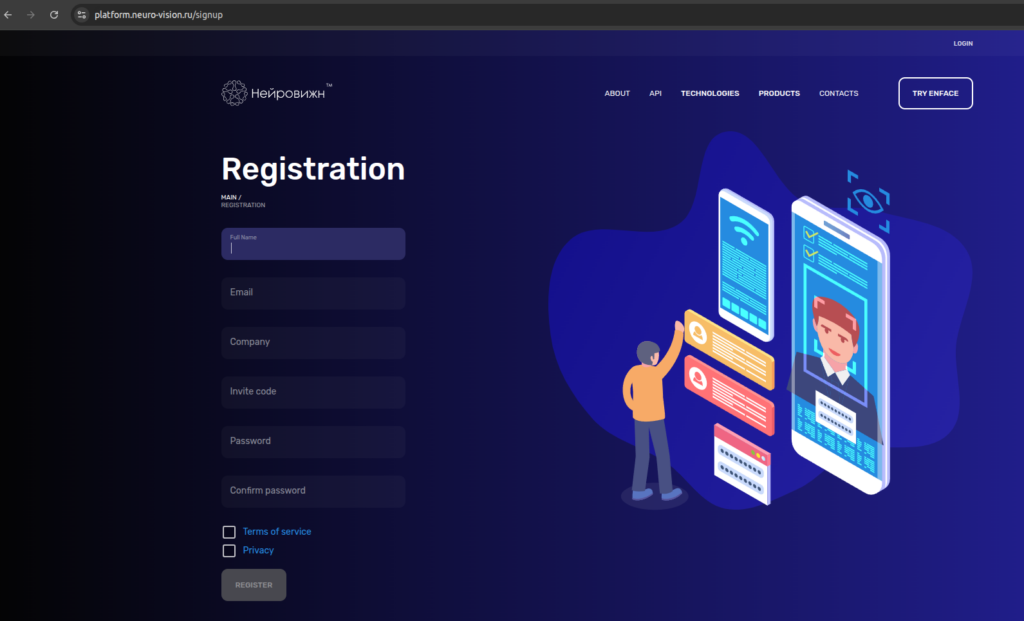
Registration and login to the platform
Registration
- On the sign-in screen, click "Register".
- Fill in "Full Name", "Email", "Company", the invitation code, "Password" and "Confirm password". The invitation code is required; the password must be at least 6 characters.
- Tick the three required checkboxes for the service documents and submit the form.
- The "Confirm your email" screen opens with the message "A confirmation link has been sent to your email". Open the email and follow the link.
- Once the address is confirmed, the sign-in screen opens after 3 seconds.
Sign-in
On the "Login" screen, enter "Email" and "Password". The "Remember me" checkbox keeps you signed in on this device.
If the email or password is wrong, you see "Incorrect login or password".
Password recovery
- On the sign-in screen, click "Forgot your password?".
- On the "Password recovery" screen, enter your email and click "Send".
- Follow the link from the email.
- Enter "New password" and "Confirm password", then click "Save password".
Signing in by invitation
If you were invited to a company, open the link from the invitation email. The "Accept invitation" page opens. Enter a password in "Password" and "Confirm password" and click "Send". After that, sign in with your email and this password.
Two-factor authentication
On your first sign-in, the account asks you to set up two-factor authentication (2FA) — you cannot start working without it.
- Install an authenticator app (Authenticator) on your phone.
- Scan the QR code on the screen with the app.
- Enter the six-digit code from the app and confirm.
After that, every sign-in asks for the code from the app after the password. You can regenerate 2FA (for example, when you change phones) in your profile. If you have lost access to the app, contact the account owner: only the owner can reset another user's 2FA ("Reset 2FA").
After sign-in
The account opens the first section available to your role: "Dashboard" if you have it, otherwise the next section in the menu. Which sections you see depends on the role the account owner assigned to you.