

The Web SDK of the Neurovision computer vision platform is a ready-to-implement KYC widget for web applications. It launches on top of your page and guides the user through all the steps of identity verification: document photography, selfie (or selfie with document), anti-fraud checks, and transfer of the result to your backend.
Platform Support. The widget works in all modern browsers on desktops and mobile devices (iOS/Android). Only camera access is required during the selfie/document capture stage.
How the process looks on the phone (step-by-step)
Below is a typical UX for the “passport + selfie with document” scenario. You can enable/disable individual steps in your scheme.
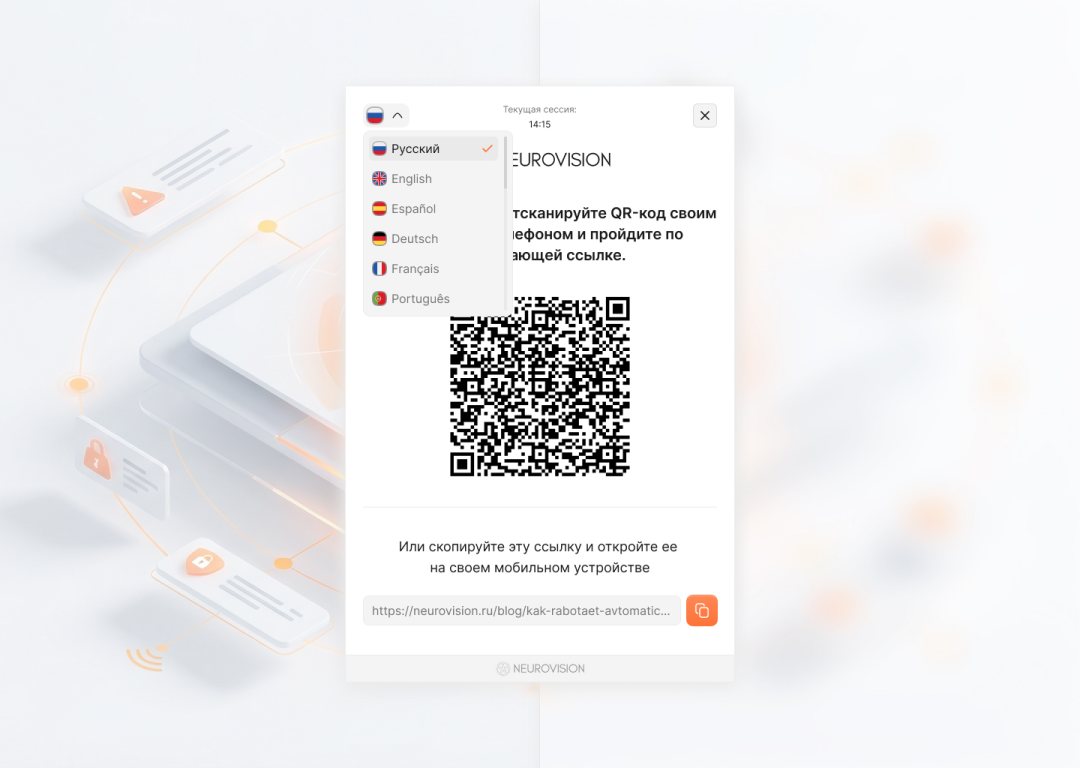
1) Start via QR code or link
The user opens the page with the splash screen and scans the QR code (or follows the received link). The widget supports the choice of interface language.
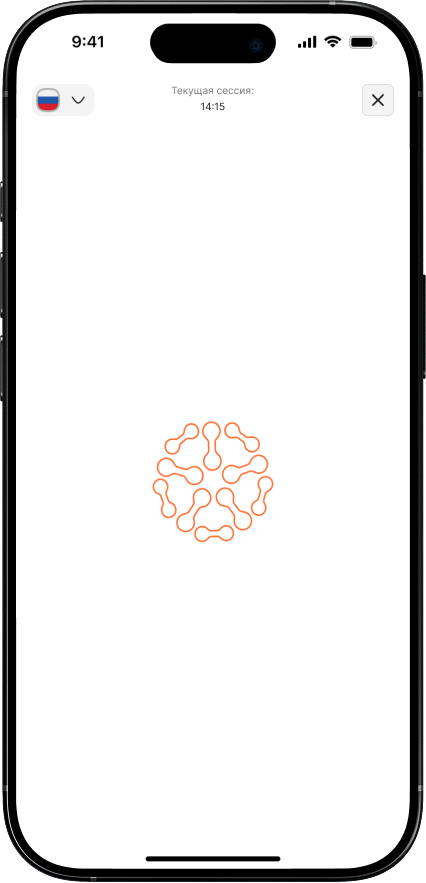
2) Widget Loading
After clicking the link, the KYC widget loading screen is displayed.
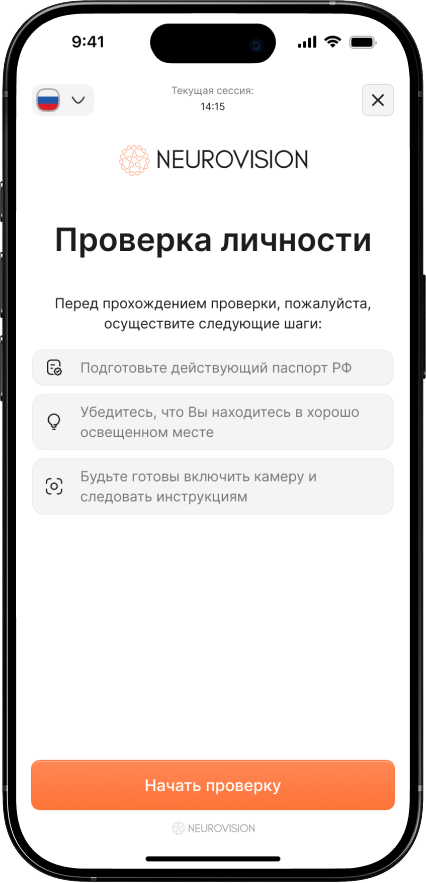
3) Quick instructions before you start
The widget explains what will happen next and asks to prepare the document and ensure good lighting.
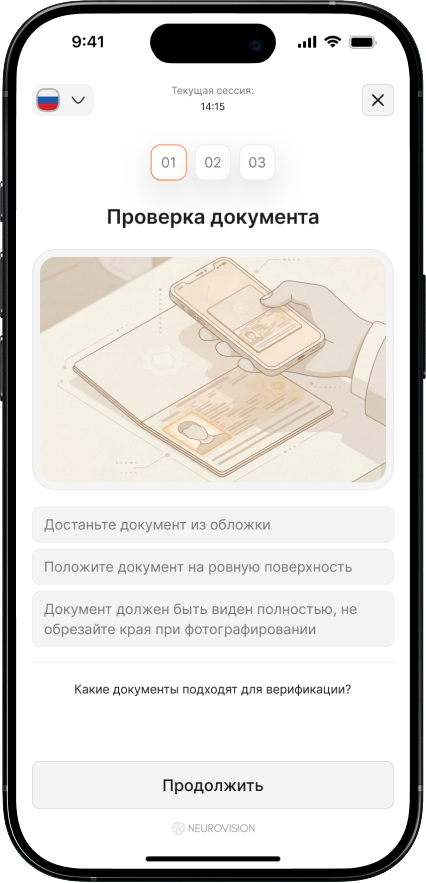
4) Document Shooting Tip
It explains exactly which document needs to be photographed and how to position it in the frame: the document should be fully within the frame, do not crop the edges.
5) Camera Access Permission
The browser will ask for permission to use the camera — you must grant it, otherwise recording will be unavailable.
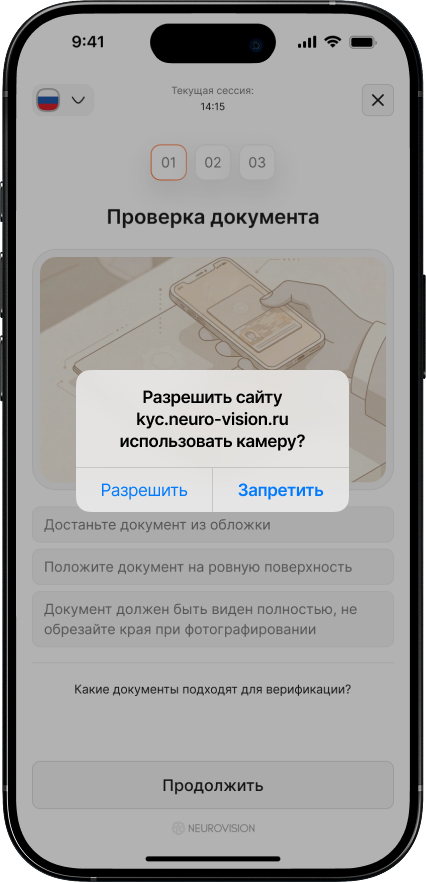
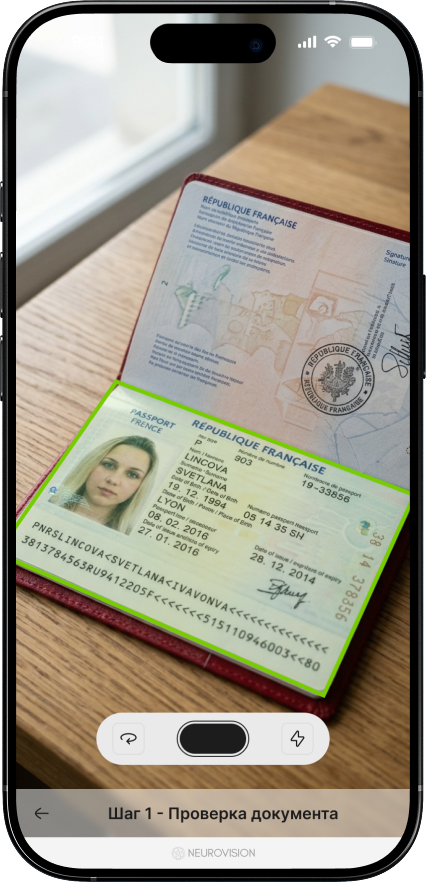
6) Document Shooting
Take a photo of the document. It must be fully visible, without obstructions (by fingers/objects), without glare or severe blur; text fields must be readable.
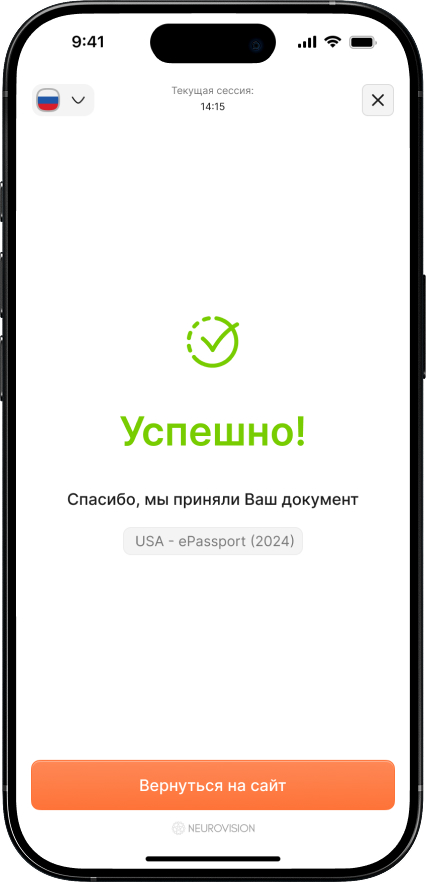
7) Document Accepted
If the document quality and type are correct, the widget confirms the receipt of the image. In case of problems, the user will be shown a hint on what to fix (e.g., “fields are not visible”).
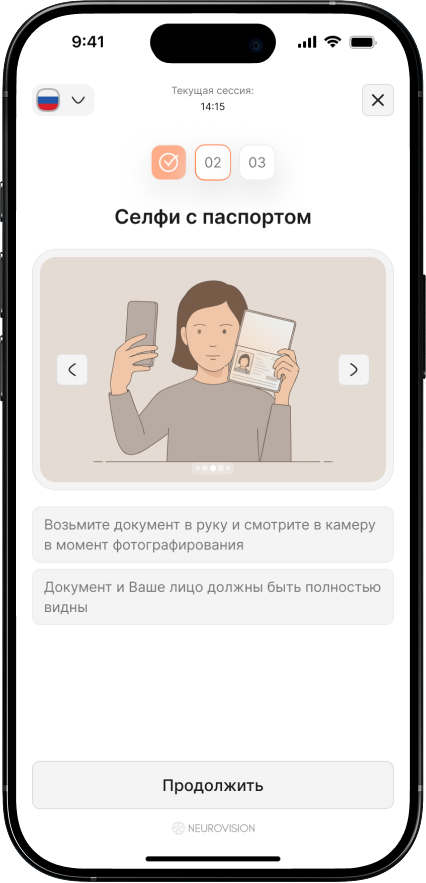
8) Document Selfie Tip
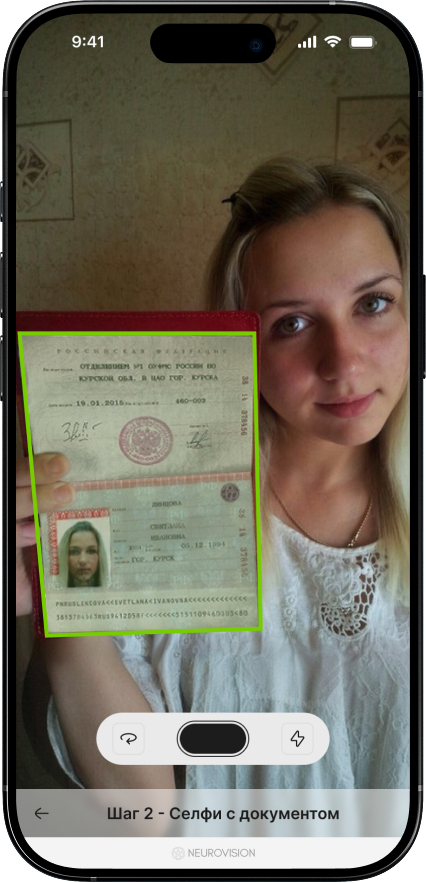
Next, you are asked to take a selfie holding the document in your hand so that both your face and the document are fully visible.
9) Selfie with document
The user takes a selfie by placing the document next to their face so that both objects are fully in the frame.
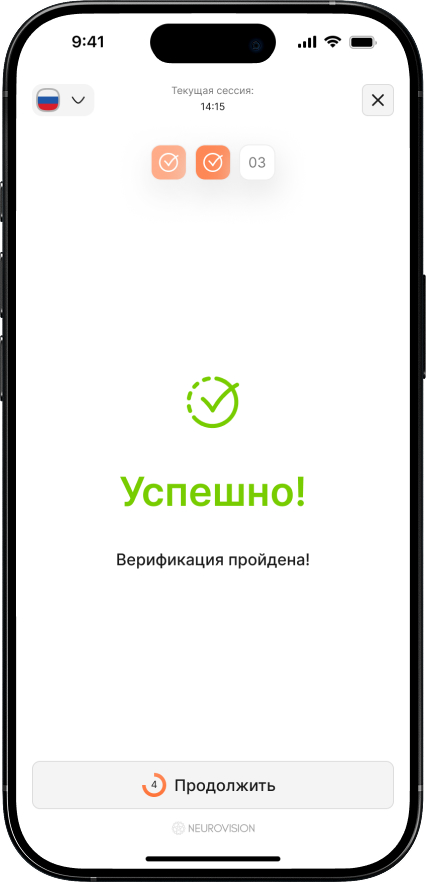
10) Completion
After all steps have been successfully processed, the widget reports the completion of verification.
When to use the Web SDK
- Fast remote identity verification (onboarding of clients, employees, couriers, etc.).
- KYC/AML compliance without developing a complex frontend from scratch.
- Scenarios with document, selfie, liveness, and anti-fraud checks.
- Requires equally good performance in mobile browsers and on desktop.
Shooting Recommendations
- Shoot in good lighting, without bright glare and deep shadows.
- Keep the entire document in the frame, do not cover key areas (photos, print, signatures, numbers) with your fingers.
- Keep the camera still; retake the shot if necessary.