Sources are the channels through which the NeuroVision™ platform receives images: cameras, photo files, archived videos. Sources are grouped; face comparison works against them, and found and new faces go to the person lists.
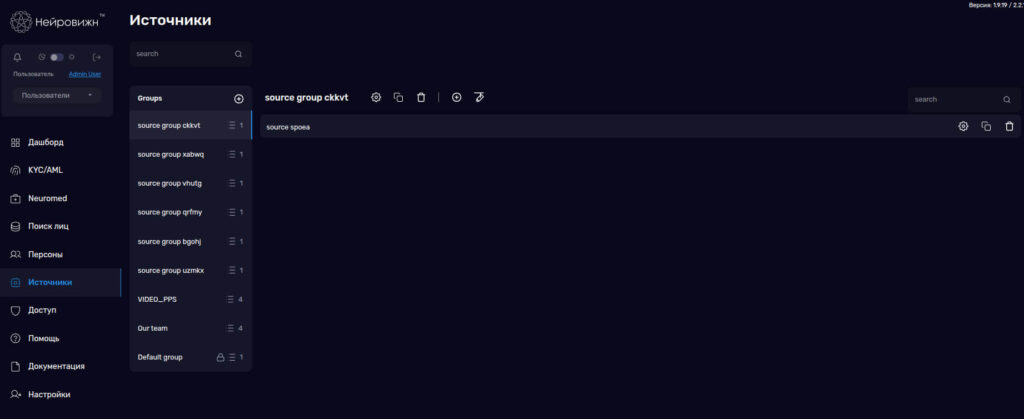
Section «Data Sources»
Source groups
Groups are listed in the Groups column. The account has a default group.
- Create a group: click "+" → Add group, enter the name in the Source name field and click Create group.
- In the group menu:
- Edit group — rename it;
- Delete group — delete it (the default group cannot be deleted);
- Copy group id — copy the group identifier;
- Add source — add a source to the group.
Adding a source
Click Add source — the New data source form opens. It has three blocks.
- Main:
- Source name — the name of the source;
- check … checkboxes — which additional face attributes to check in images from this source.
- Search in persons list — which person lists to search for faces from the source. The "+" button adds a list; for each one you set:
- Person list — the list;
- On found alerts — notify when a face is found in the list;
- On failed alerts — notify when a face is not found.
- New person creation — automatic creation of persons from faces in the source:
- Auto create on — when to create a person: never, on no match, or on less than 80/85/90/95% match;
- Min face square in pixels — the minimum face size;
- Max face rotation yaw angle and Max face rotation pitch angle — the allowed head rotation horizontally and vertically;
- Person list — which list to add new persons to.
While never is selected, the other fields of the block are hidden.
Click Create source. To change a source later, open its settings — the form is called Edit data source, and the save button is Save.
Source tile
A source tile shows its name, the letters of the enabled checks (the first letters of their names) and a P badge if automatic person creation is on. The default source is marked with a lock.
Source actions:
- Settings — open the settings;
- Copy id — copy the source identifier;
- Delete source — delete the source after confirmation (the default source cannot be deleted).
Bulk settings
When a group has sources, the Bulk management button becomes available. It opens the same settings form without the name; Apply to all applies the chosen settings to all sources.