Face Search is the section for finding a person by photo in your person lists and for comparing faces against sources. The section has two tabs: "Face search" and "Face comparison".
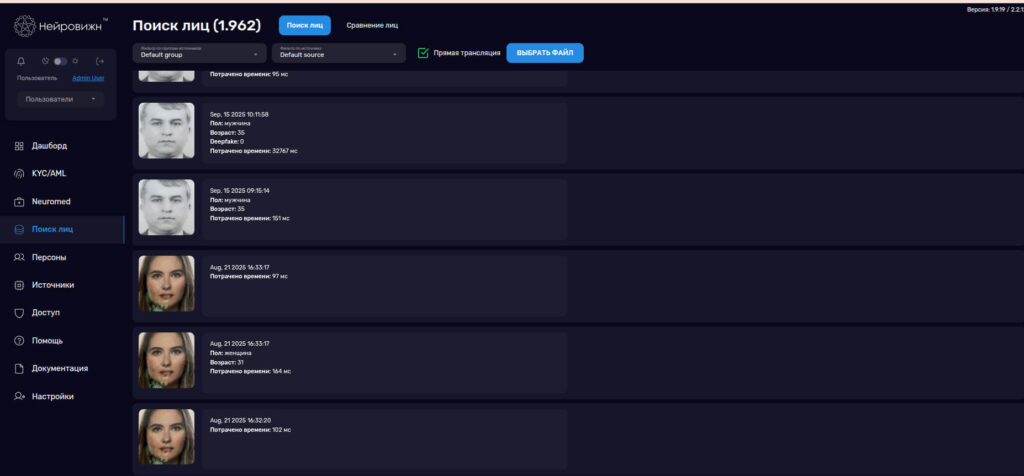
Face search and comparison
The "Face search" tab
- Upload an image with "File action" — you can select several files at once — or turn on "Stream live" to search frames from a camera.
- The system finds the faces in the image and shows matches from your person lists.
- Each result shows "Confidence" — how close the match is — and the "Time spent" on the search in milliseconds.
- Clicking a result opens the person's card. All matches found for one person are collected in the "All person matches" window.
The "Face comparison" tab
A comparison checks whether the face in your images matches the faces of a source.
- Choose a group in "Filter by source group" and, if needed, a specific source in "Filter by source". Sources and groups are set up in the Sources section.
- Click "Compare" and upload PNG, JPG or JPEG images — several files are allowed. The button is available once a source or a group is selected.
- Each comparison in the results shows "Same" — Yes or No — and "Confidence". A match is highlighted in green, a mismatch in red.
Until you run a comparison, the tab shows "No data".