The Person lists section stores the database of people the system recognizes: persons are grouped into lists, and each person has a face photo and a card with details.
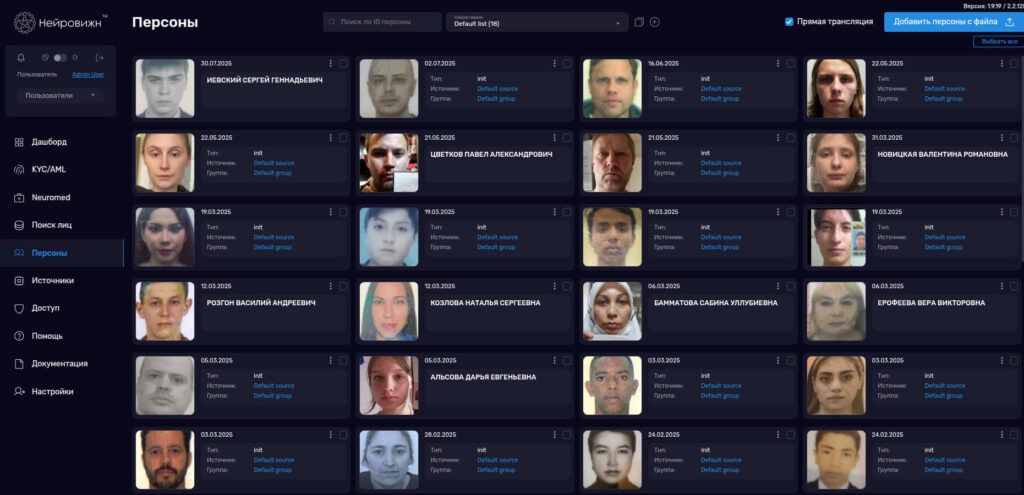
Lists, person cards and face search
At the top of the section are the "Search by person id" field and the "Persons list" selector: the page shows the persons of the selected list.
Person lists
A list can be added, edited, deleted, and its ID copied. Deleting a list asks for confirmation. The default list cannot be edited or deleted.
Adding persons
The "Add persons from file" button adds persons to the current list from photos. png, jpg and jpeg files are accepted; you can select several files at once.
Selecting several persons
Select persons to delete them in one action:
- "Select all" — select all persons on the page;
- "Clear selected" — clear the selection;
- "Delete selected objects (N)" — delete the selected persons, where N is their number.
Person actions
The ⋮ menu on a person card:
- "Edit person" — open the card with the details;
- "Replace person image" — upload a different face photo;
- "Find similar persons" — find people with a similar face in the database;
- "Move to other list" — shown when you have more than one list; the move is confirmed with the question "Move the person to list "<name>"?" and the "Yes, move" button;
- "View all person matches" — every case where the person's face was found;
- "Copy person id";
- "Delete person" — after deletion the message "Person successfully deleted" appears.
Person card
In the card you can fill in the person's details: Country, Date of birth, Age, Gender, Email, Phone number, Wallet, Socials, Group, Source. The "Download crops" button downloads the cropped face images of the person.
The "Person properties" panel holds custom fields in JSON format: add a field with "Add field" and click "Save".
What's next
- Face search — searching for a person by photo and comparing faces.
- Sources — where images come from and how a source is linked to a person list.